

Windows
This guide will show you how to install Reaparr on Windows using Docker Desktop. Follow the steps to get Reaparr up and running on your Windows machine.
Prerequisites
Ensure you have Docker Desktop installed on your Windows machine. You can download it from the official Docker website.
Installing Reaparr with Docker Desktop
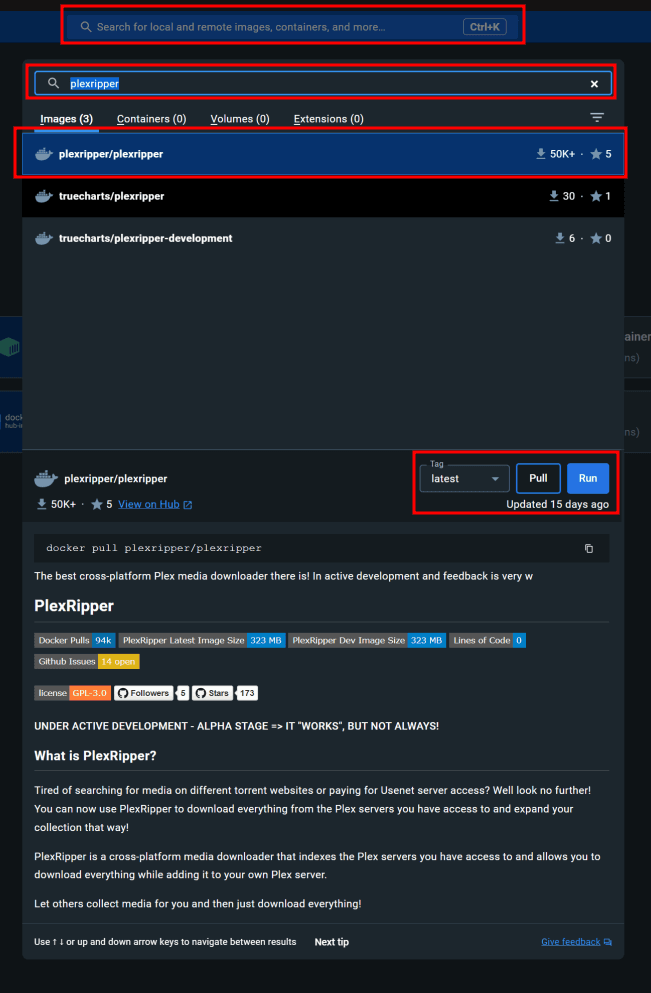
- Open Docker Desktop and click on the search bar at the top
- Search for
reaparrand click on thereaparr/reaparrimage - You can change the tag to
latestif you want to use the latest version of Reaparr, ordevif you want to use the latest development version of Reaparr - Next, click on the
Runbutton
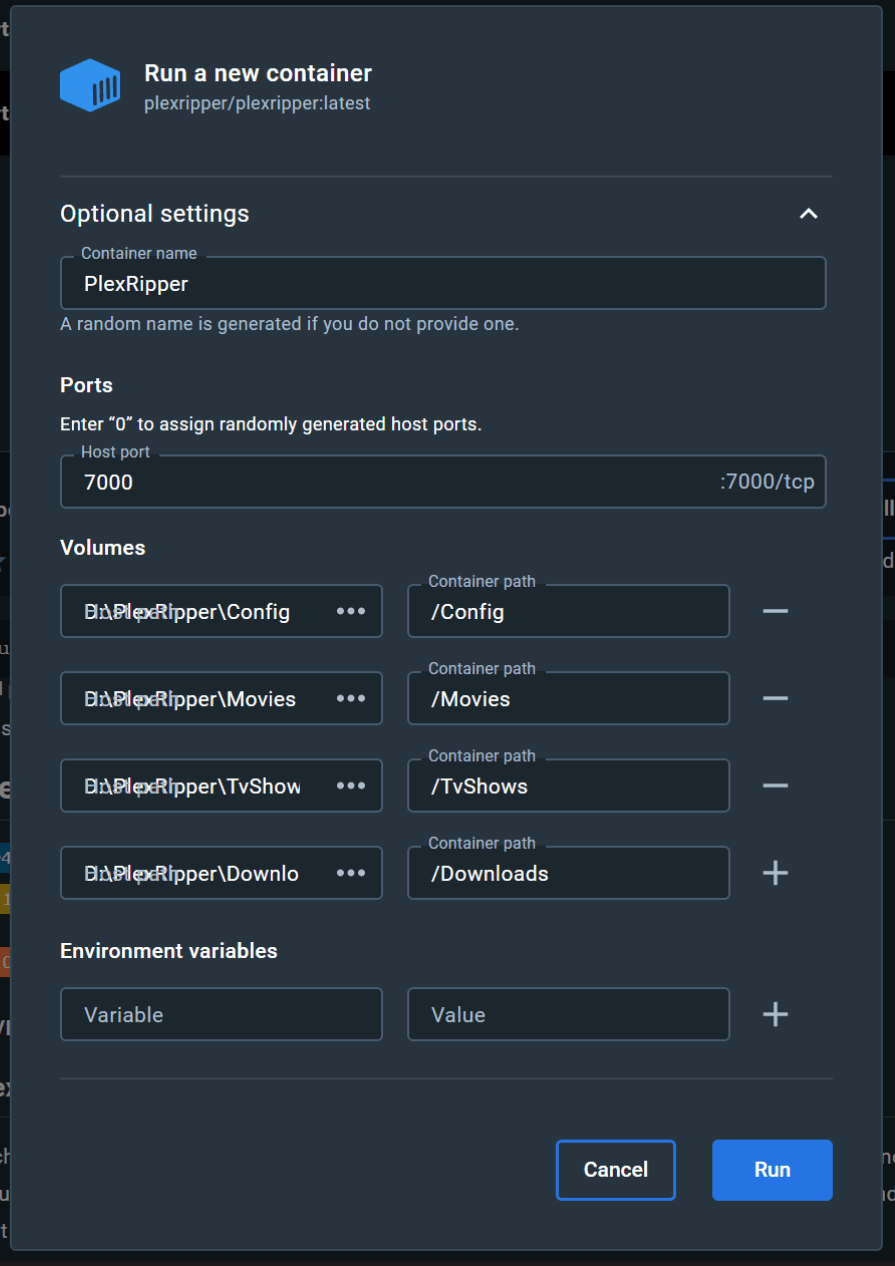
- A new window will open where you can configure the container, click on
Optional Settingsto expand the options. - Ensure you have the following filled in:
Name: Reaparr, this is the name of the containerHost port: 7000, this is the port you will use to access Reaparr in the browserVolumes: these are the locations where Reaparr will store its data. The left box is for the folder on your computer, the right box is for the folder inside the container. You can change the left box to any folder on your computer, but the right box should stay the same./Config: this is where Reaparr will store its configuration, logs and database/Movies: this is where Reaparr will move the movies after it has finished downloading them/TvShows: this is where Reaparr will move the tv-shows after it has finished downloading them/Downloads: this is where Reaparr will temporarily store the media while downloading
- Once everything is filled in, press
Runat the bottom of the window
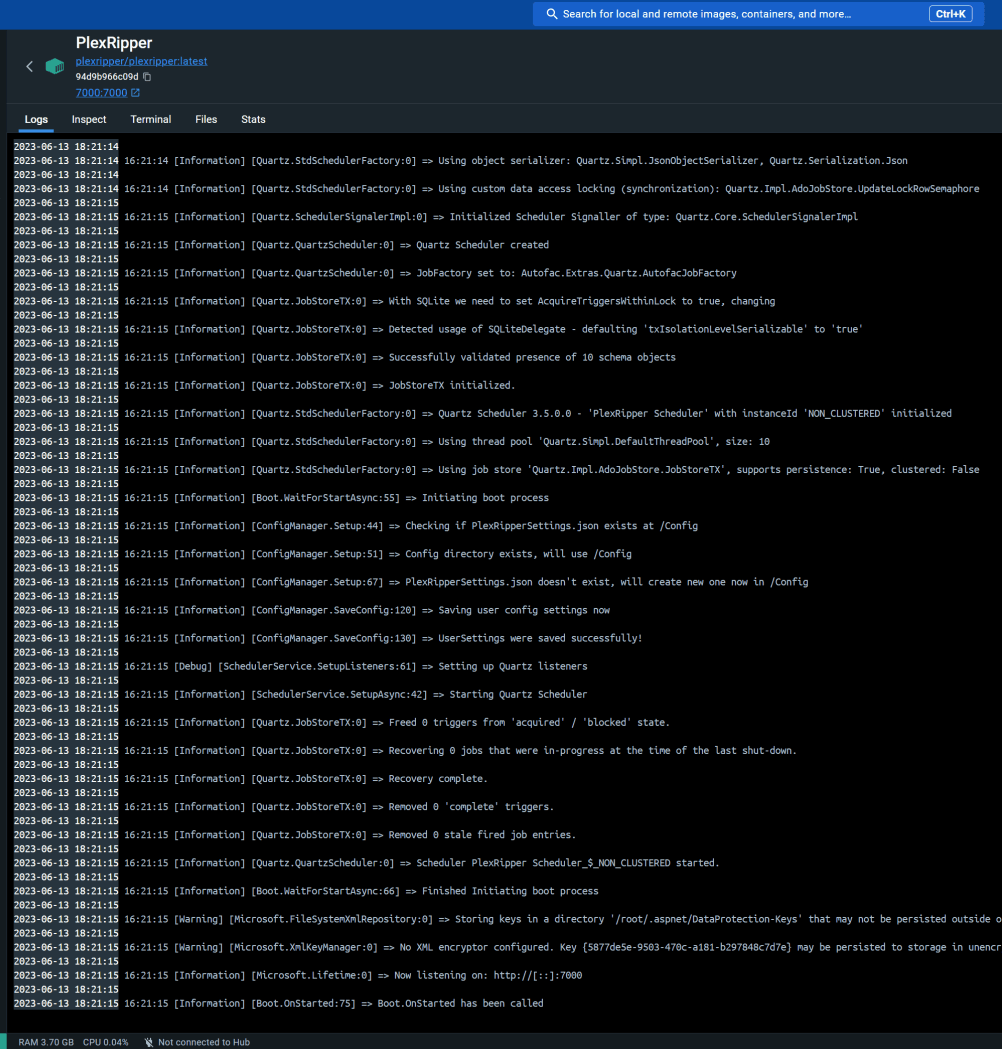
- If all went well you should see the Reaparr booting up in the Docker Desktop window
- Final step, go to your browser and navigate to http://localhost:7000, and you should see Reaparr working!
Troubleshooting
If you encounter issues downloading a file, you may need to check your permissions to the mounts within the Docker container. To change the mount permissions:
- Open Docker
- Locate the Reaparr Container from the Container view list
- Click Reaparr
- From the available tabs at the top, click Exec
This will present you with a shell window.
- Run the following commands (copy and paste)
chmod -R 777 /Config
chmod -R 777 /Downloads
chmod -R 777 /Movies
chmod -R 777 /TvShows
- This will permit Docker to write to your Windows mounts (assuming you have successfully mounted them).
- Done!